 Selecting "Always" will automatically enable comment moderation for all incoming comments on your blog. You may also choose to moderate only older comments by specifying a number of days in the "Only on posts older than" setting. Selecting "Never" will disable comment moderation for this blog.
Enabling comment moderation then drops down an email form. This lets you moderate comments via email without affecting your regular comment notification setting. It is optional, since you can always moderate comments through the Blogger interface.
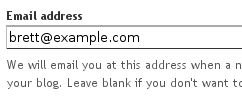 So enable comment moderation from one of the first two options, enter a notification address if desired, save the settings, and wait for your next comment. All incoming comments will now go to a special "Moderate Comments" page, which you can find under the Posting | Moderate comments tab:
 On this page, you will see a list of all the comments that have been created but have not yet been approved or rejected. (This list excludes any comments made by admin members of the blog.) By default, they will be
 sorted by the time they were created, but you can also group them by their respective posts, by clicking the "Post Name" sort option at the top.
 Each line in the list displays the beginning of the comment, the author's name, and the time it was created. Clicking the triangle to the left will expand the row to show the full text of the comment, along with "Publish" and "Reject" links, which you can use to approve or disapprove the comment. You can also select multiple comments and publish or reject them all at once, by using the check boxes on the left hand side and the buttons at the top or bottom of the list.
This entire process can also be done via email. If you entered an email address for moderation, you will get a message for each comment which will contain "Publish" and "Reject" links, as well as a link to the main moderation page for the blog. For example:

The links provided will prompt you to log in to your Blogger account, if you aren't already logged in. They will only work for new comments, and will not let you change the state of a comment that has already been moderated.
Notes:
- Comments that have already been published or rejected are removed from the moderation list. Rejected comments are deleted and cannot be recovered. Approved comments can be deleted in the usual way if you decide you no longer want them.
- Only blog administrators will be able to moderate comments. Team members without admin privileges will not have access.
http://www.google.com/support/blogger


No comments:
Post a Comment