What is transliteration?
Blogger offers an automatic transliteration option for converting Roman characters to the Indic characters used in Hindi, Kannada, Malayalam, Tamil, and Telugu. This lets you type these languages phonetically in English script and still have them appear in their correct alphabet. Note that this is not the same as translation -- the sound of the words is converted from one alphabet to the other, not the meaning. For example, typing 'hamesha' transliterates into Hindi as:

Enabling the Transliteration Feature
To enable this feature, go to the
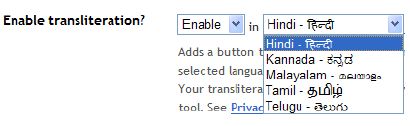
Settings | Basics page, select
Enable for the transliteration option, and select your preferred language. This setting will affect all blogs on your account, similar to the Compose Mode setting.
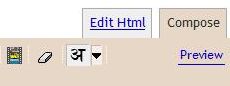
Next, go to your post editor and you'll see a new button.
Typing with Transliteration
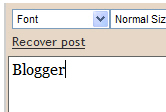
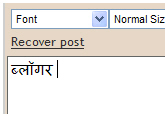
This button toggles the transliteration feature on and off. (You can also use Ctrl+G as a shortcut.) When it's on, it affects the title, labels, and body of your post. The letters of a word will appear as you type them until you reach the end of the word. As soon as you type a space or a punctuation mark, the letters will be converted to Indic characters, like this:
If you prefer to do the transliteration all at once, rather than as you go, you can type your text with the transliteration button turned off. Then select all your text and click the button. Everything selected will be transliterated at once, and you can go back and edit it as desired. (Note: This only works in the body of the post, not in the title or labels.)
The transliteration will attempt to match the sounds of the letters as accurately as possible between the two alphabets. If you find that it's incorrect, however, you can fix it.
Correcting and Editing Words
 Under the Blog Readers heading, you'll probably see "Anybody" selected as the default. When you change this to "Only readers I choose," you'll get an Add Readers button.
 Click the Add Readers button and then enter the email address of a person to whom you want to grant access to your blog. To add multiple people, separate their addresses with commas.
 For each address entered, the Google Account associated with that address will be given access to view your blog. If an address is not associated with an account, that person will be sent an invitation email with a link allowing them do one of three things:


 Then enter your email address:
 Notes:
 Here you can request your password to be sent to you in email by entering your Google Account email address.
 If you've forgotten your Google Account username and you've set up a Google Account for a non-Gmail address,